

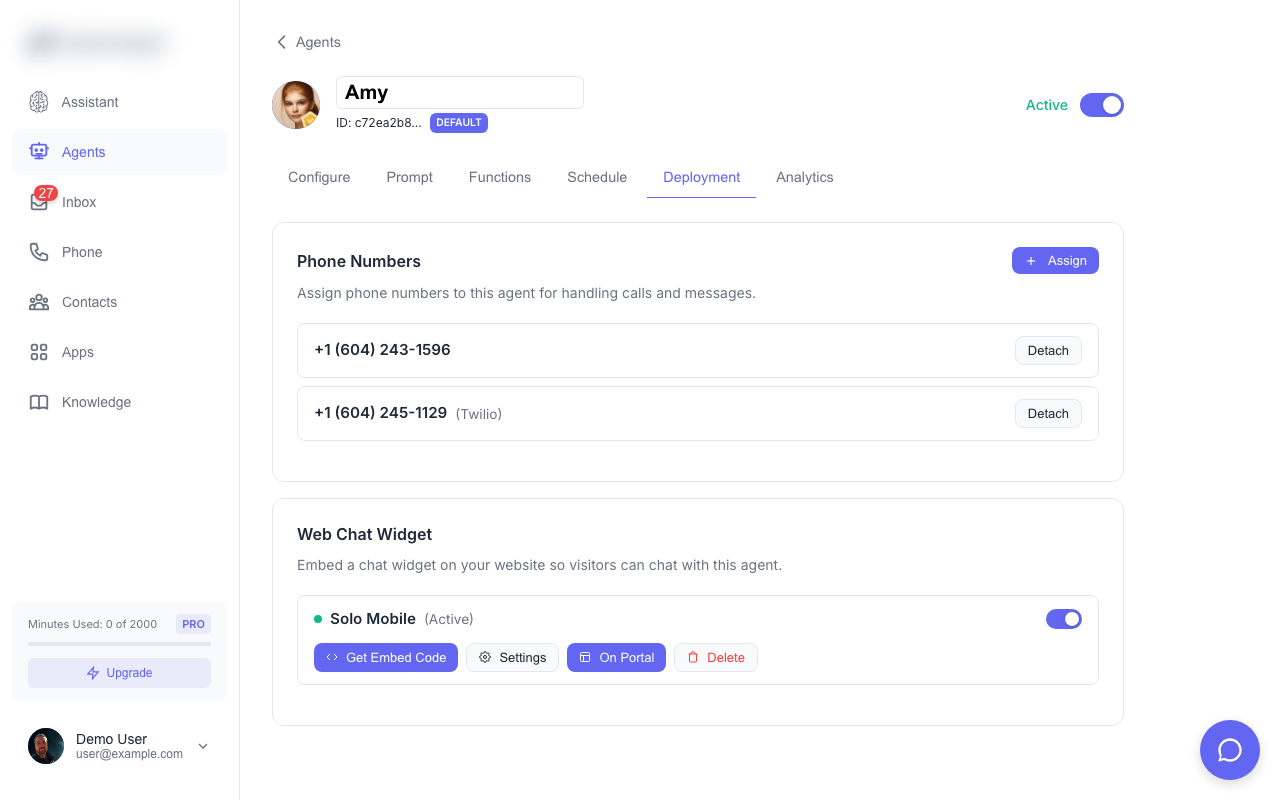
Overview
The Chat Widget lets website visitors chat with your AI agent in real-time. It appears as a floating bubble that expands into a full chat interface.Setting Up the Widget
Embed Code
Add this snippet to your website:YOUR_WIDGET_KEY with your actual widget key from the dashboard.
Customization
Appearance
| Setting | Description |
|---|---|
| Primary Color | Widget accent color (button, header) |
| Position | Bottom-right or bottom-left |
| Agent Name | Name shown in chat header |
Messages
| Setting | Description |
|---|---|
| Welcome Message | First message shown when chat opens |
| Offline Message | Shown outside business hours |
Visitor Info
Optionally collect visitor information:- Name (optional)
- Email (optional)
How It Works
- Visitor opens chat - Clicks the floating bubble
- Welcome message - Agent sends greeting
- Conversation - Real-time AI responses
- Session saved - Conversation appears in your Inbox
Viewing Chat Conversations
All chat sessions appear in your Inbox:- Filter by “Chat” to see only widget conversations
- View full conversation thread
- Reply manually to take over from AI
Human Handoff
When you reply to a chat from the Inbox:- Your message is sent to the visitor
- AI pauses for that conversation
- Visitor sees seamless responses (doesn’t know it’s human)
- AI resumes after inactivity
Domain Restrictions
For security, you can limit which domains can use your widget:- Leave empty to allow all domains
- Add specific domains to restrict (e.g.,
mysite.com)